Aftersales Tool Box V4 2025 Download Free – Tecno, Infinix & itel Service Tool
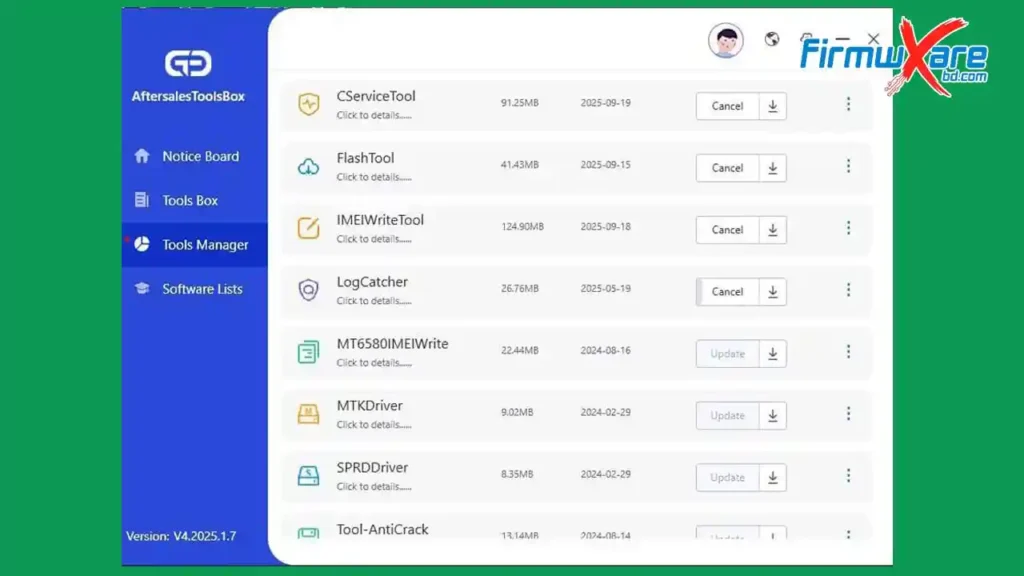
Aftersales Tool Box V4 2025 is a Windows-based service platform built specifically for Transsion devices — Tecno, Infinix, and itel. It brings together firmware searching and downloading from a live server, a built-in Tools Manager for updating MTK, SPD, and Qualcomm modules, and device repair functions including baseband, IMEI, device ID, and hardware calibration — all from one interface. Instead of searching for flash files and tools separately for each job, technicians who work with Transsion phones can handle most tasks from a single program.
Aftersales Tool Box V4 Key Features
- Live server firmware search and download by phone model
- Dedicated support for Tecno, Infinix, and itel (Transsion) devices
- Built-in Tools Manager — update MTK, SPD, and Qualcomm modules from inside the program
- Baseband problem repair
- IMEI error repair
- Device ID repair
- Hardware calibration support
- Live updates for new models, security patches, and tool versions
- MediaTek, Spreadtrum (SPD), and Qualcomm chipset support
Download Aftersales Tool Box V4 2025
- Software Name: Aftersales Tool Box
- Version: V4 2025 Latest
- File Size: 1021 MB
- Platform: Windows
- Supported Brands: Tecno, Infinix, itel
- License: Free
- Password: No Password
Aftersales Tool Box V4 How to Use
- Extract the downloaded package and prepare the files on your Windows PC.
- Install the MTK and SPD drivers included with the package so devices can be detected correctly.
- Open the tool and log in with your account credentials.
- Open Tools Manager and update the MTK, SPD, or Qualcomm modules you plan to use.
- Select the brand — Tecno, Infinix, or itel — and choose the correct device model.
- Search for firmware from the live server and download the required flash files.
- Turn off the phone, hold the correct boot key (Volume Up or Volume Down depending on the model), then connect via USB cable.
- Start the selected service operation — flashing, IMEI repair, baseband fix, or hardware calibration.
- Wait for the process to complete, then disconnect and reboot the device.
Important Notes
- An account login is required — register or log in before using any features.
- Always install the included MTK and SPD drivers before connecting any device.
- Update the Tools Manager modules before starting work — outdated modules may not support newer devices.
- An active internet connection is required for firmware downloads from the live server.
- Always back up device data before running any flash or repair operation.
Conclusion
Aftersales Tool Box V4 2025 is a practical all-in-one service platform for technicians who regularly work on Tecno, Infinix, and itel phones. Having firmware search, download, tool updates, and device repair functions in one place saves real time compared to managing separate tools and files for each Transsion job. The built-in Tools Manager keeps MTK, SPD, and Qualcomm modules up to date without any extra effort. If Transsion devices make up a significant part of your repair work, Aftersales Tool Box V4 is worth downloading and setting up on your Windows PC today.
Credits: All credits go to the Aftersales Tool Box development team. Disclaimer: For educational purposes only. Always back up data before running any repair or flash operation. Use responsibly. We are not liable for any device damage or data loss.