ColorOS Upgrade Tool v1.0.14 Download – Official Oppo Flash Tool
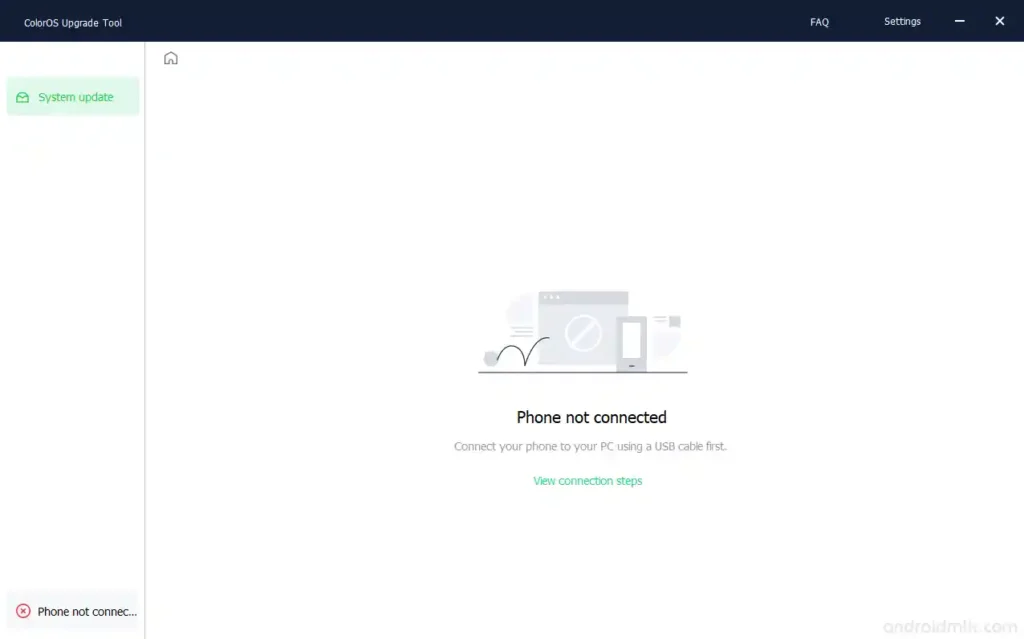
ColorOS Upgrade Tool v1.0.14 is an official flashing and firmware upgrade utility developed by Oppo Mobile Telecommunications. It is designed specifically for Oppo devices running ColorOS 11 and above, allowing users and technicians to install firmware packages, fix software issues, and apply security patches directly from a Windows PC. The tool supports both .zip and .ofp firmware file formats and works with a wide range of Oppo smartphones — from budget models to flagships.
ColorOS Upgrade Tool Key Features
- Flash and upgrade firmware on Oppo devices (ColorOS 11+)
- Supports .zip and .ofp firmware file formats
- Apply latest software updates, bug fixes, and security patches
- Reinstall or upgrade the ColorOS operating system
- Fix common software and system issues
- Improve device performance after upgrade
- Compatible with a wide range of Oppo smartphones
- Simple step-by-step interface — beginner friendly
- Official tool developed by Oppo — safe and reliable
- Verified clean by Kaspersky Antivirus
All Versions Download
| Version | Download Link 1 | Download Link 2 |
|---|---|---|
| v1.0.14 (Latest) | Android File Host | Google Drive |
| v1.0.11 | Android File Host | Google Drive |
Download ColorOS Upgrade Tool v1.0.14
- File Name: ColorOS_Upgrade_Tool v1.0.14.zip
- File Size: 72 MB
- Version: v1.0.14 Latest
- License: Free
- Password: No Password
ColorOS Upgrade Tool How to Use
- Download the ColorOS Upgrade Tool from the links above.
- Extract the ZIP file and install it on your Windows PC.
- Enable USB Debugging on your Oppo device:
- Go to Settings → About Phone
- Tap Build Number multiple times until you see “You are now a developer”
- Go to Settings → Developer Options and turn on USB Debugging
- Connect your Oppo device to your PC via USB cable.
- Open the ColorOS Upgrade Tool on your computer.
- Select the firmware package (.zip or .ofp) you want to install.
- Start the upgrade process and wait for it to complete — the device may reboot during flashing.
- Wait for the confirmation message to appear on screen.
- Disconnect your device safely once the upgrade is complete.
Important Notes
- Always back up important data before flashing — the upgrade process may wipe your device.
- Make sure your Oppo device has at least 50% battery charge before starting.
- Do not disconnect the USB cable or turn off your PC during the flashing process.
- If the device is not detected, install the latest Oppo or MediaTek USB drivers first.
- This tool only supports Oppo devices running ColorOS 11 and above.
Conclusion
ColorOS Upgrade Tool v1.0.14 is the official Oppo flashing utility for upgrading firmware on ColorOS 11 and above devices. It handles everything from routine software updates and security patches to full firmware reinstalls — all through a clean, step-by-step interface that works on both 32-bit and 64-bit Windows. The support for .zip and .ofp formats gives you flexibility when working with different firmware packages, and the wide device compatibility means it covers most Oppo models you are likely to encounter. Whether you are fixing a software issue or upgrading to the latest ColorOS build, this tool gets the job done reliably. Download it free today using the links above.
Credits: Full credits go to Oppo Mobile Telecommunications for developing and sharing this official tool.
Disclaimer: For educational purposes only. Always back up your data before flashing. We are not liable for any device damage or data loss.