Android Image Kitchen v3.8 Download for Windows (Free)
Android Image Kitchen is a free Windows tool for unpacking and repacking Android boot and recovery images. If you customize Android devices or build custom ROMs, it gives you direct access to the ramdisk and kernel files inside an image. This guide covers what the tool does, how to download Android Image Kitchen v3.8, and how to use it safely.
What Is Android Image Kitchen?
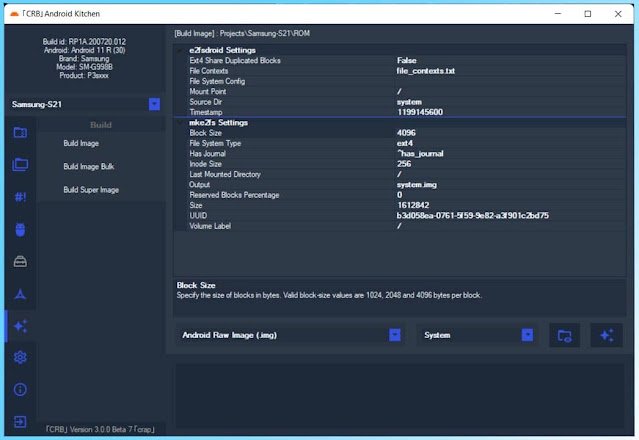
Android Image Kitchen (AIK) is a script-based utility that unpacks Android image files such as boot.img and recovery.img into editable parts, then repacks them into a flashable image. These images hold the kernel and the ramdisk, which control how the device boots and which system properties and startup scripts it loads. Editing them lets you change low-level behavior without rebuilding a full ROM.
Key Features of Android Image Kitchen
- Unpack and repack images: Split a boot or recovery image into its kernel, ramdisk, and header settings, then rebuild it after your edits.
- Edit the ramdisk: Modify files such as default.prop and init scripts to change system properties and boot behavior.
- Support for multiple image formats: Handles common Android boot image layouts, including those from different chipset vendors.
- Simple batch-file workflow: Run a few scripts without installing anything or typing long commands.
- Lightweight and portable: The package is only about 8 MB and runs from any folder.
Download Android Image Kitchen v3.8
| Detail | Info |
|---|---|
| File Name | Android.Image.Kitchen.v3.8-Win32 |
| File Size | 8 MB |
| Compatible OS | Windows 7 and Windows 10 (32-bit and 64-bit) |
| Password | N/A |
Source Code
Android Image Kitchen is open source. You can view the project and its latest releases on GitHub.
How to Install Android Image Kitchen
- Download the package: Get the Android.Image.Kitchen.v3.8-Win32 file from the link above.
- Extract the archive: Unzip it to a short folder path, such as C:\AIK. Avoid spaces and special characters in the path.
- Check the folder: You should see scripts such as unpackimg.bat, repackimg.bat, and cleanup.bat. No installation is needed.
How to Use Android Image Kitchen
Step 1: Copy the boot.img or recovery.img you want to edit into the AIK folder. Take it from your device’s stock firmware package.
Step 2: Drag the image onto unpackimg.bat, or run the script from Command Prompt, to unpack it.
Step 3: Open the ramdisk and split_img folders and make your changes to the extracted files.
Step 4: Run repackimg.bat to build the modified image. The new file is saved as image-new.img.
Step 5: Flash the new image to your device with a tool that suits your model, such as Fastboot. Run cleanup.bat afterward to reset the folder for the next job.
Precautions Before You Modify Images
- Always keep a backup of the original image before editing.
- Use an image that matches your exact device model and firmware version.
- Make small changes and test them one at a time, since a faulty boot image can stop the device from starting.
- Check that your bootloader is unlocked if your device requires it for flashing.
Conclusion
Android Image Kitchen v3.8 is a small, free, and reliable tool for anyone who needs to unpack, edit, and repack Android boot and recovery images on Windows. Follow the backup and compatibility precautions above, and you can make low-level changes with confidence.
Also See: