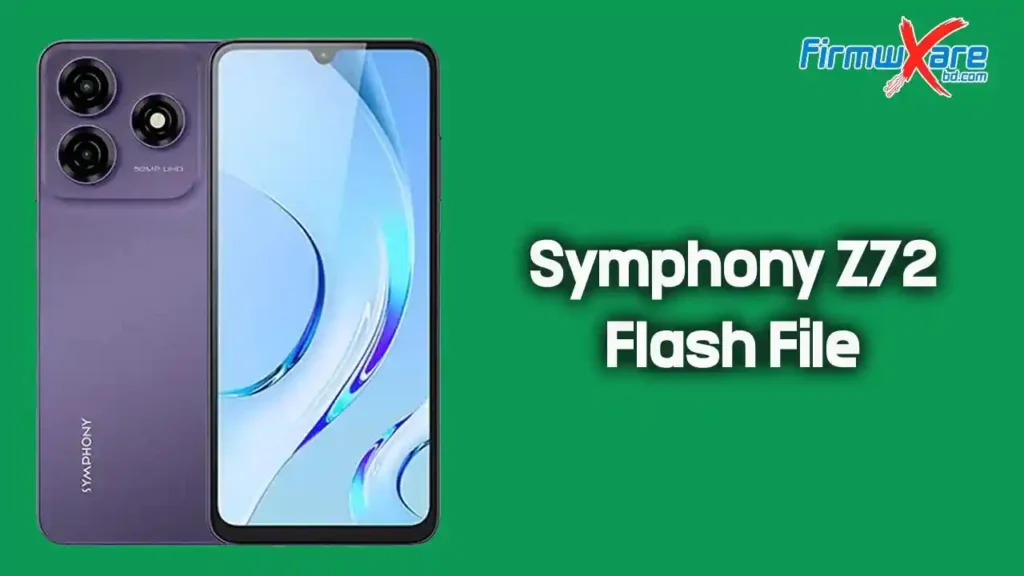
Symphony Z72 Flash File (Firmware) Free Download
If your Symphony Z72 smartphone is not working properly, stuck on the logo, or facing software errors, installing the official stock firmware can fix these issues. This guide helps you download the correct firmware and safely flash it on your device.
About Symphony Z72 Firmware
The official firmware for the Symphony Mobile Z72 is designed to restore your device to its original factory settings. It comes as a complete package that includes the flash file, flashing tool, USB driver, and installation guide.
Flashing this firmware can help resolve serious software problems and improve device performance.
Why Flash Stock Firmware
Flashing stock firmware is useful in many situations, such as:
- Fixing bootloop or stuck on logo
- Repairing dead or unresponsive devices
- Solving IMEI or network issues
- Removing system bugs and lag
- Upgrading or downgrading Android version
- Cleaning malware or unwanted apps
Download Symphony Z72 Flash File
- File Name: Symphony_Z72_HW1_V06_250224_SPD.zip
- File Size: 3.09 GB
Download Link👉 Google Drive
Pre-Requisites Before Flashing
Before starting the flashing process, make sure to follow these steps:
- Backup all important data
- Charge your device at least 50%
- Use a reliable USB cable
- Install USB drivers on your computer
- Extract the firmware package properly
- Disable antivirus if it blocks the tool
How to Install Stock Firmware
Follow these simple steps to flash the firmware on your Symphony Z72:
Step 1: Download & Extract
Download the firmware package and extract it on your PC.
Step 2: Install Drivers
Install the provided USB driver. Skip this if already installed.
Step 3: Open Flash Tool
Launch the SPD Flash Tool from the extracted folder.
Step 4: Load Firmware
Load the firmware file into the flash tool.
Step 5: Connect Device
Switch off your device and connect it to the PC via USB cable.
Step 6: Start Flashing
Click the “Start” or “Download” button in the tool.
Step 7: Wait for Completion
Wait until the flashing process is completed successfully.
Step 8: Reboot Device
Disconnect the device and turn it on.
Conclusion
Installing the Symphony Z72 stock firmware is a reliable way to fix software issues and restore your phone to its original condition. Follow the steps carefully to ensure a smooth and safe flashing process.