Infinix GT 20 Pro X6871 Flash File (Firmware) Free Download
If your Infinix GT 20 Pro X6871 is stuck on the logo, not turning on, or facing software problems, flashing the official stock firmware is the best solution. On this page, you can download the Infinix GT 20 Pro X6871 flash file (firmware) for all available versions along with a complete flashing guide to restore your device to its original working condition.
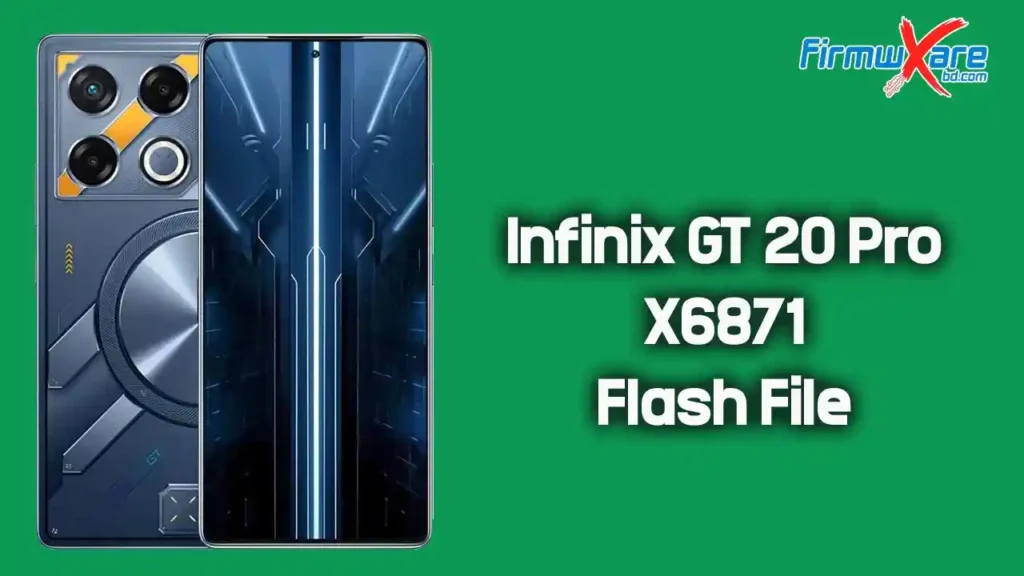
Download Infinix GT 20 Pro X6871 Firmware
All firmware files listed below are official, untouched stock ROMs. Choose the correct version before downloading.
Version: X6871-H962CF-U-OP-240419V1566
- Device Model: Infinix GT 20 Pro X6871
- Region: Global
- Type: Stock ROM
- Updated: September 16, 2025
Download 👉 Google Drive (Free)
Version: Infinix_GT_20_Pro_X6871_OP_V1356_240319_MXML
- Device Model: Infinix GT 20 Pro X6871
- Region: Global
- Type: Stock ROM (XML)
- Updated: September 16, 2025
Download 👉 Google Drive (Free)
What’s Inside the Firmware Package
After extracting the firmware zip, you will find:
- Stock Firmware (Flash File)
- Flash Tool
- USB Driver
- How-to Flash Guide
Everything needed for flashing is included in the package.
When Should You Flash Infinix GT 20 Pro X6871 Firmware?
You should install this firmware if your Infinix GT 20 Pro X6871 has:
- Bootloop or stuck on the Infinix logo
- Dead or not powering on
- IMEI or network issues
- System lag or frequent crashes
- Pattern or password lock
- Software errors after an update
- Virus or malware issues
How to Flash Infinix GT 20 Pro X6871 Firmware
There are three methods to flash this firmware depending on your device status.
Required Tools Before You Start
Make sure you have everything ready before flashing:
- Download SP Flash Tool — best tool for flashing MediaTek firmware on Windows
- Download MTK USB Driver — required for your PC to detect the device properly
- A Windows PC, original USB cable, and at least 50% battery on your phone
Method 1 — Using Official Transsion Flash Tool (Service Account Required)
- Open Transsion Flash Tool on your PC
- Browse and select the downloaded device firmware
- Boot your phone into Preloader / BROM / EDL mode
- Connect the device to your PC via USB cable
- Click Start Flash and wait for the process to finish
- The device will reboot automatically once done
Method 2 — Using Fastboot (Bootloader Unlocked Devices Only)
- Download and install the Fastboot Enhance Tool on your PC
- Extract the firmware package on your computer
- Boot your phone into Fastboot Mode
- Connect the device to your PC via USB cable
- Flash the firmware using the Fastboot Enhance Tool
- Wait until flashing is complete and reboot your device
Method 3 — Using SP Flash Tool (Third-Party)
- Download SP Flash Tool and install it on your PC
- Install the MTK USB Driver on your computer
- Extract the firmware package on your computer
- Open SP Flash Tool and load the XML scatter file from the firmware folder
- Power off your phone completely
- Click the Download button in SP Flash Tool
- Connect your device to the PC via USB cable
- The flashing process will start automatically
- Wait until the tool shows a green tick or success message
- Disconnect your phone and power it on
Important Tips Before Flashing
- Charge your phone to at least 50% before starting
- Back up all important data — flashing will erase everything
- Use the original USB cable for a stable connection
- Do not disconnect your phone during the flashing process
- Make sure the firmware version matches your exact device model and region
- Wrong flashing may brick your device — proceed carefully
Fix IMEI After Flashing
If your IMEI is lost or shows null after flashing, use the UMT MTK Tool which supports full IMEI backup and restore on MediaTek devices, or try the MCT MediaTek Auth Bypass Tool to restore device access.
Why Use Official Stock Firmware for Infinix GT 20 Pro X6871?
- 100% safe and original — no modifications
- Fixes all major software and bootloop problems
- Restores original system performance and battery life
- Removes viruses, malware, and unwanted apps
- Fully compatible with your Infinix GT 20 Pro X6871
Related Downloads You May Need
Conclusion
The official stock firmware for the Infinix GT 20 Pro X6871 is the safest and most reliable way to fix software-related issues and restore your device to normal. Download the correct firmware version from the links above, use the SP Flash Tool with the MTK USB Driver, follow the flashing steps carefully, and your phone will be back to full working condition in no time.